Verification levels and Get Full Access
What levels L0 to L4 mean, the three steps behind Get Full Access, how the identity check works, and how the business is submitted for review.
Last updated 20 October 2026
How levels work
Every organisation has a verification level. The Verification page shows the three steps toward it as a numbered checklist; your current level appears in small print at its foot, and what each next step unlocks, with the limits that apply now, is one link away on Your limits. Every feature stays open for records; only sending, paying and payouts wait on verification and approval.
| Level | What it takes |
|---|---|
| L0, Unverified | Where every new organisation starts. |
| L1, Secure sign-in | A passkey or two-factor sign-in on your account. |
| L2, Identity verified | Identity verification of an account holder, and a passed sanctions check. |
| L3, Business verified | Legal name, registration documents, directors and owners declared, and our team's review. |
| L4, Enhanced checks | Extra checks and approval by our compliance team. |
A met requirement shows Done. L1, L2 and L3 each move on their own, the moment their requirements are met.
Get Full Access: the three steps
The sidebar's Get Full Access row, under Move Money, carries a dot for each step and says how many are complete. Choosing it opens the Verification overview: the same three steps as a numbered checklist, with no level or trust pill in the header. The step not yet finished carries the one primary button; a finished step reads Completed, and the business step reads In review, or offers See what to change after changes are requested.
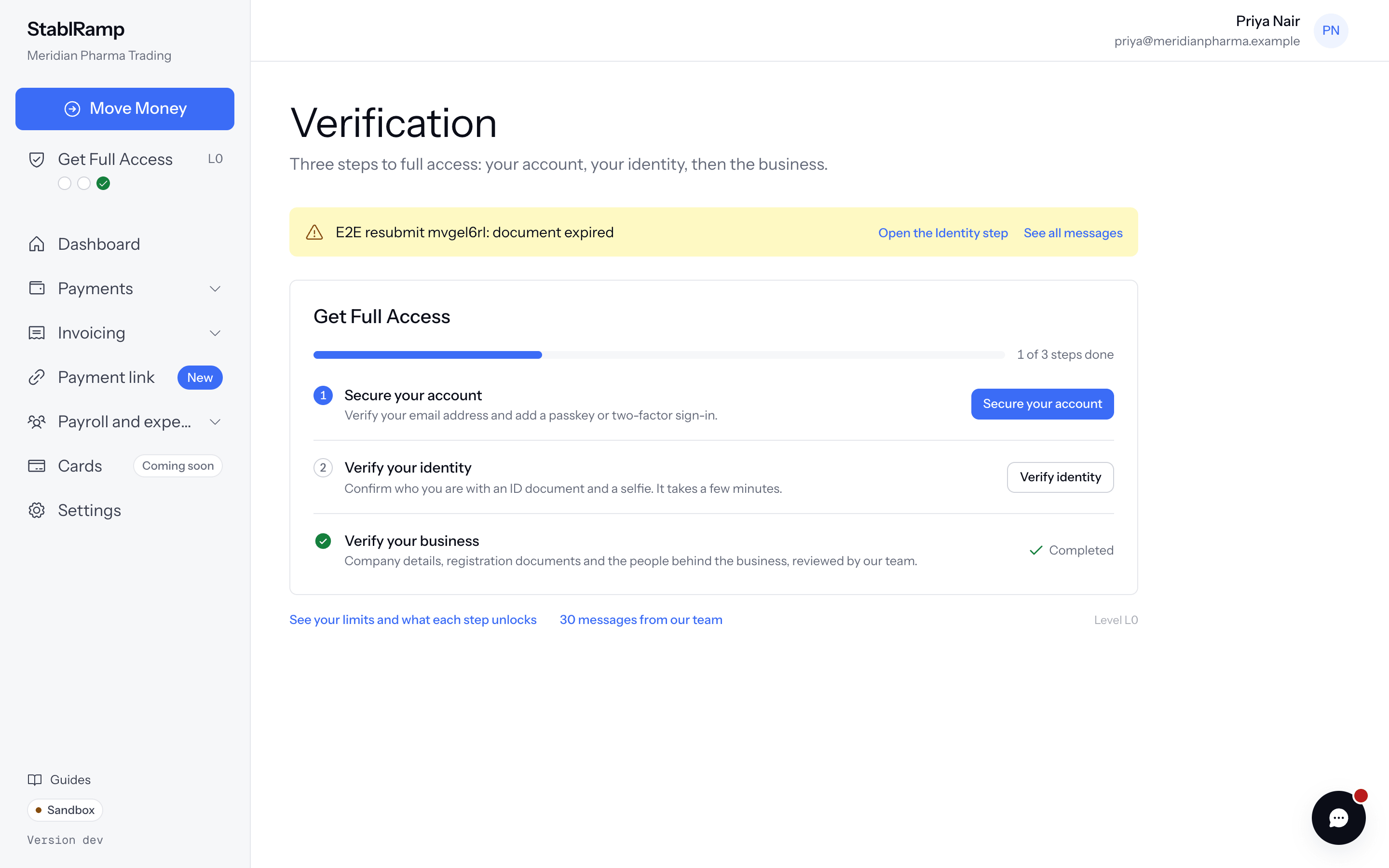
Once every step reads Completed, our team's operating approval decides whether the account may operate.
Account, on its own page, shows Email address and Second factor each as Done or To do, with Open personal details and Open authentication to finish whichever is not; a second factor also meets L1.
Your limits
Your limits, one link under the checklist, states What you can do now in a sentence, for example what you may deposit now. Below L3 it reads You cannot receive deposits yet. They open once your business is verified.
What the next step unlocks names that step and lists its requirements, each Done, To do, or Not available yet; The steps after that holds the rest. Done, it reads Every step is done. For higher limits, our compliance team runs extra checks; write to support to ask.
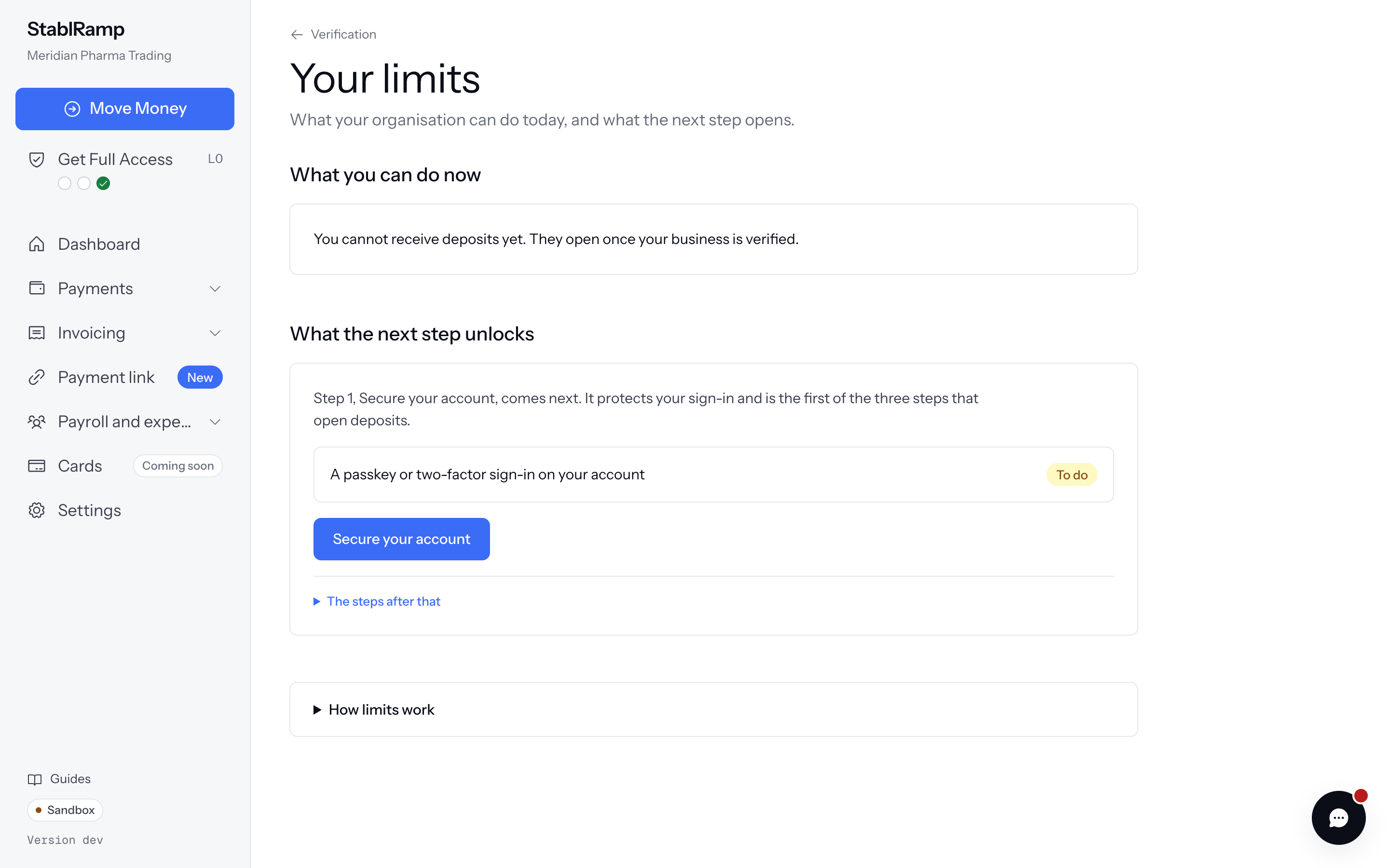
A disclosure, How limits work, covers the rest: limits grow with account history, an over-limit deposit is held for review though it still arrives, and anything beyond that needs extra checks through support.
Verify your identity
- Open the Identity step, or choose Verify identity from Get Full Access.
- If asked, open People, pick your name, and choose This is me.
- Choose Start identity verification, then photograph your passport or identity card and take a selfie.
- The provider sends you back, and the page updates itself.
Status shows where the check stands. In review needs nothing from you; after Declined, New photo needed, Not finished or Expired, choose Start again.
Any other reason shows The verification could not be completed. and no Start again; the compliance team reviews it and contacts you if needed.
Submit the business for review
- Company: Industry and Source of funds (20 characters or more), plus the legal details set on Company details.
- Documents: PDF, JPG or PNG up to 10 MB each: incorporation certificate, registers of directors and shareholders, and proof of address.
- People: every director, beneficial owner at 25 percent or more, and signatory, with at least one director and 75 percent of ownership declared, or the box ticked when nobody owns that much.
Still missing names anything not yet in place; identity verification stays listed but does not block submission. Tick the declaration and choose Submit for review; only owners and admins can submit.
Our team reviews it, locking the steps and marking each document Accepted, Rejected or Resubmission requested. Approval moves the organisation to L3; otherwise the checklist shows Changes requested, and the steps reopen to submit again.