Notifications
Choose which emails your organisation's members receive about deposits, payments, invoices, payroll and support, each with its own switch that saves as soon as you flip it.
Last updated 19 October 2026
Where notifications are
Open Settings and choose Notifications, in the Personal section of the grid alongside Personal details and Authentication. The page's own subtitle is Choose which emails you receive about this organisation. Each member sets their own.: nobody else's choices change when you flip a switch.
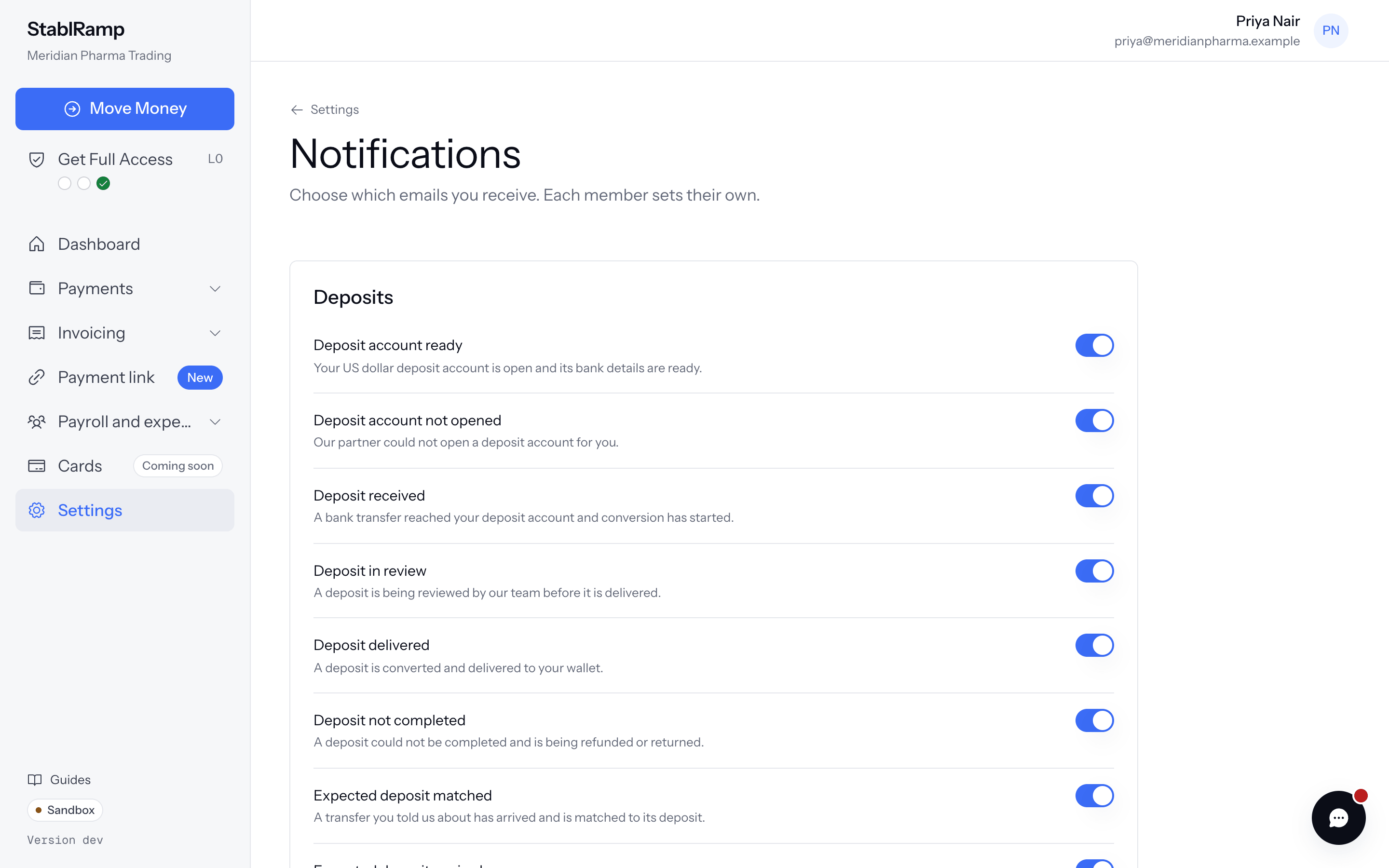
Each switch saves on its own; there is no separate save step. While a change is being written it is shown disabled at its new value, and the page confirms Notification settings are saved. underneath the groups once it lands.
What each group covers
A missing preference reads as on, the same as it does on the server, so until you turn one off every event here is sent.
| Event | Sent when |
|---|---|
| Deposit delivered | A deposit is converted and delivered to your wallet. |
| Expected deposit matched | A transfer you told us about has arrived and is matched to its deposit. |
| Payment waiting for approval | A payment needs your approval before it can be paid. |
| Payment approved | A payment you created is approved. |
| Payment paid | A payment is confirmed on chain. |
| Payment failed | A payment could not be verified or did not complete. |
| Invoice viewed | A client opens an invoice you sent. |
| Invoice paid | A client pays an invoice you sent. |
| Invoice overdue | An invoice you sent passes its due date unpaid. |
| Payroll paid | Every payment in a payroll run is paid. |
| Expense approved | An expense you submitted is approved. |
| Reply from support | Our team replies to one of your support tickets. |
What is live today
The switches under Deposits and Support send real email now: a deposit landing in your wallet, a transfer you flagged through Add funds being matched, and a reply on a ticket you opened through Getting help.
Payments, Invoices and Payroll and expenses are marked Coming later, with the note These emails start when the feature arrives. Your choice is kept until then. Their switches work today and store your choice; nothing is sent for them yet because the features behind them have not shipped.
Turning an event off
- Open Settings, then Notifications.
- Find the event under its group, for example Deposit delivered under Deposits.
- Switch it off. The change is saved straight away; no confirmation step stands between you and the new state.
If a save fails, the page shows a banner with what went wrong and the switch returns to its last saved state rather than staying at the value you just chose. Try again once the problem it names is fixed.