Vendors and their payment methods
Add the companies you pay, save the wallet or bank details each one takes, and find a vendor again by name or email when you come to pay a bill.
Last updated 20 October 2026
Vendors
Vendors lists the companies you pay, under the Payments group in the sidebar. Each one carries the payment methods it takes: a wallet StablRamp pays from your own wallet and checks on chain, or bank details kept for information only. Search vendors finds a vendor by company name or email address.
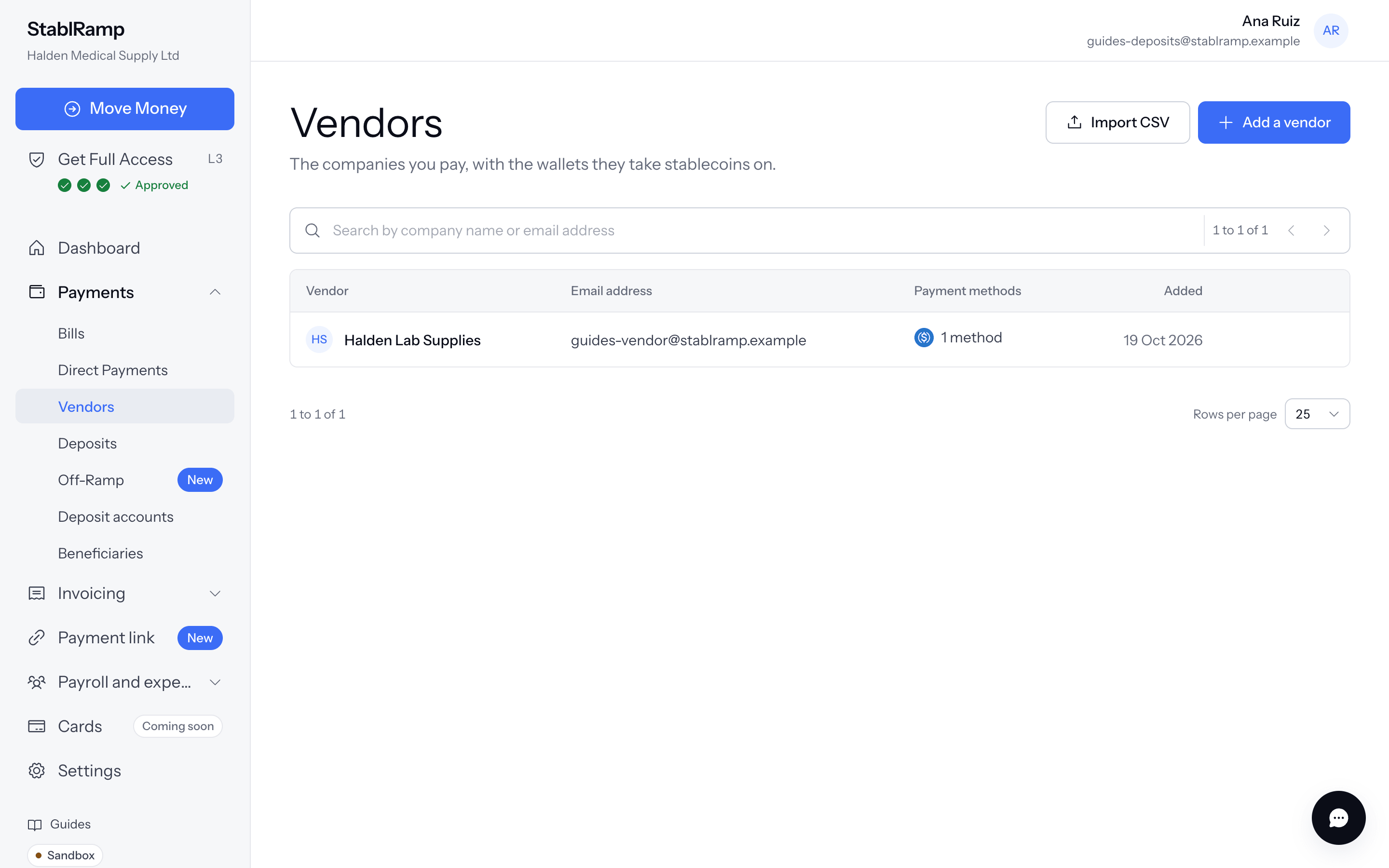
With no vendors yet, the list reads No vendors yet. Start by adding your first vendor. A search that matches nothing reads No vendor matches that search.
Add a vendor
- Choose Add a vendor.
- Enter the Company name and, if you have it, an Email address.
- Under Payment methods, choose Add a payment method, then set Type to Wallet or Bank details.
- For a wallet, choose the Network, the Stablecoin it takes, and paste the Wallet address. For bank details, enter the Account holder and either an Account number or an IBAN, with the Bank country.
- Choose Save vendor.
A Tax number, an Address and Notes (seen only by your team) are optional. A vendor can carry more than one payment method; Remove this payment method takes one off, and Keep this payment method undoes it before you save.
Save a wallet address on the network the vendor actually gave it to you for. The address is checked against the format of that network, including its checksum where the network has one, but a correct address on the wrong network still cannot be recovered once paid.
Wallet or bank details
| Payment method | What it means |
|---|---|
| Wallet | Paid from your own wallet with Send Funds, a bill or a batch. StablRamp checks the transfer on chain before marking the payment paid. |
| Bank details | For information only. StablRamp does not pay bank accounts: you pay the vendor yourself, outside StablRamp, then mark the payment as paid. |
See Pay a vendor with Send Funds and Bills: import and pay for how each method is actually paid.
Find, edit and archive a vendor
Open a vendor's row to Edit its details and payment methods, or choose Archive from the row. Archiving asks you to confirm, and warns that the vendor leaves the vendor list and the recipient picker while payments already made to it stay as they are. Saving a vendor again with the same details does not create a duplicate.
The vendor's own page repeats its Contact details, its Payment methods, and a Payments to this vendor panel with Pay this vendor. That panel cannot yet be filtered to one vendor's payments, so it points you to search Direct Payments for the vendor's name instead.
Import vendors from a CSV
- Choose Import CSV on the Vendors page.
- Download the template for the exact columns:
name, email, tax_number, network, address, asset, label. - Choose the CSV file, up to 1,000 rows and 1 MB, and choose Import.
A row with a wallet adds that payment method to the vendor it names. The result reads, for example, 3 vendors added, 2 payment methods added, 1 row already saved. Rows that need a fix are listed by line number and are not imported; nothing else in the file is skipped because of them.