Add funds with Move Money
Send US dollars into a deposit account from the Move Money drawer: the three states of Add Funds, the bank details, and how a transfer you flag is matched to the deposit it creates.
Last updated 19 October 2026
Open the drawer
Move Money sits at the top of the sidebar, above Get Full Access. Choose it to open a drawer with three tabs: Add Funds, Send Funds and Off-Ramp. Add Funds is how the US dollars described in Deposit accounts reach your wallet; the other two tabs are not open yet and show a note in place of a form.
The drawer also opens from Move Money on the dashboard's totals card, and from Add funds wherever a deposit is the next step, for example an empty Deposits list. Add Funds then shows one of three states: locked below verification level L3, a short form to open your first account at L3, or the bank details of an account you already hold.
Below L3: Get Full Access
Deposits open at L3. Below it, Add Funds shows the same three steps as the sidebar's Get Full Access link: Secure your account, Verify your identity and Verify your business, with the count of steps done out of three. Each is covered in full in Verification levels and Get Full Access.
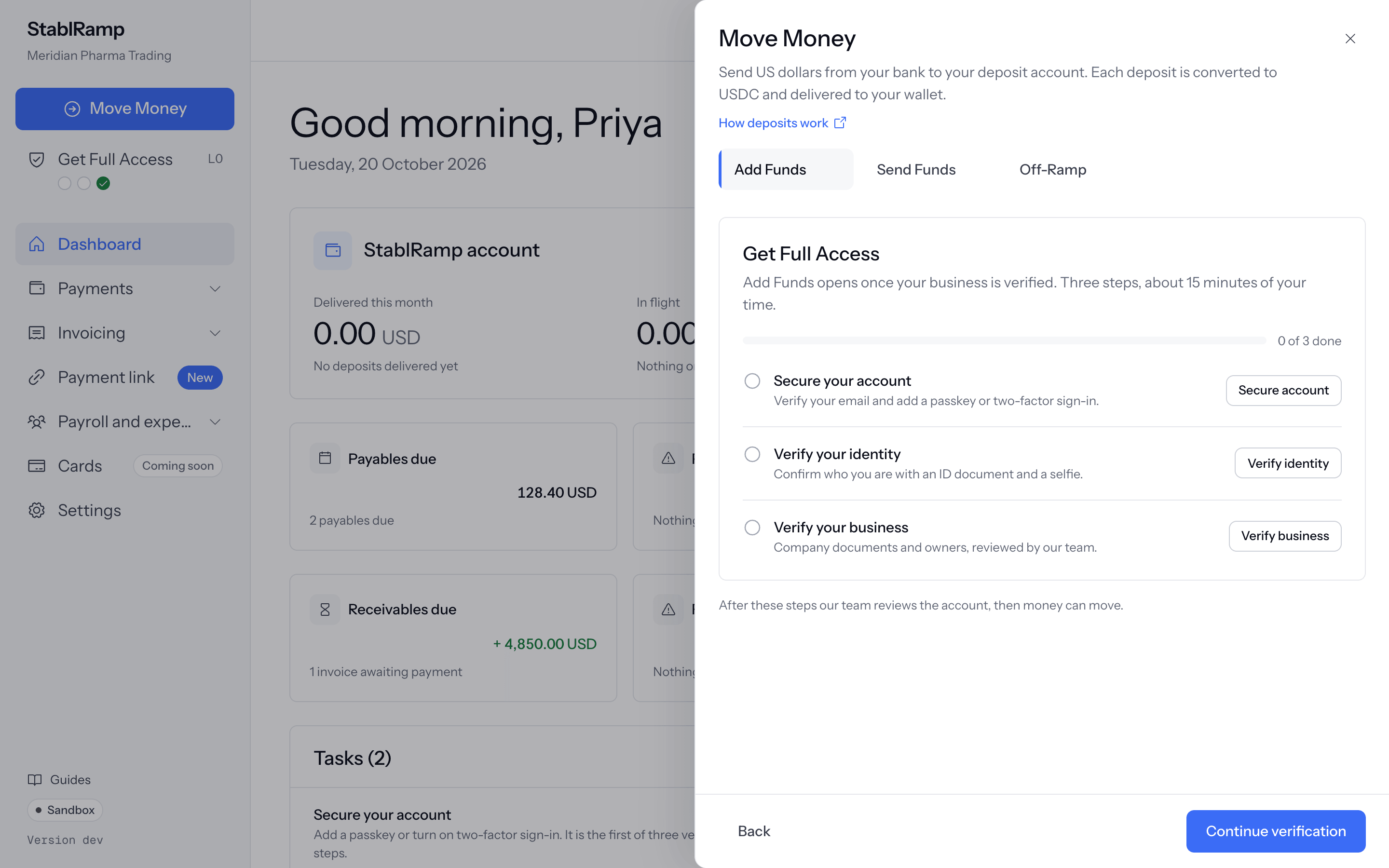
Continue verification in the drawer's footer opens whichever step is still outstanding.
At L3 with no account yet
Once the business is verified, an organisation with no active USD account sees Open a deposit account, with the note Your business is verified. Open a USD account to receive transfers; it takes a minute. The form is the one described in Deposit accounts: choose the wallet deposits deliver to and, if you want one, a name. If the partner has not finished its own checks yet, the drawer shows that onboarding instead.
Once the account opens, the drawer says Your account is open. Its bank details appear here in a moment. and moves on to them by itself.
Send the transfer
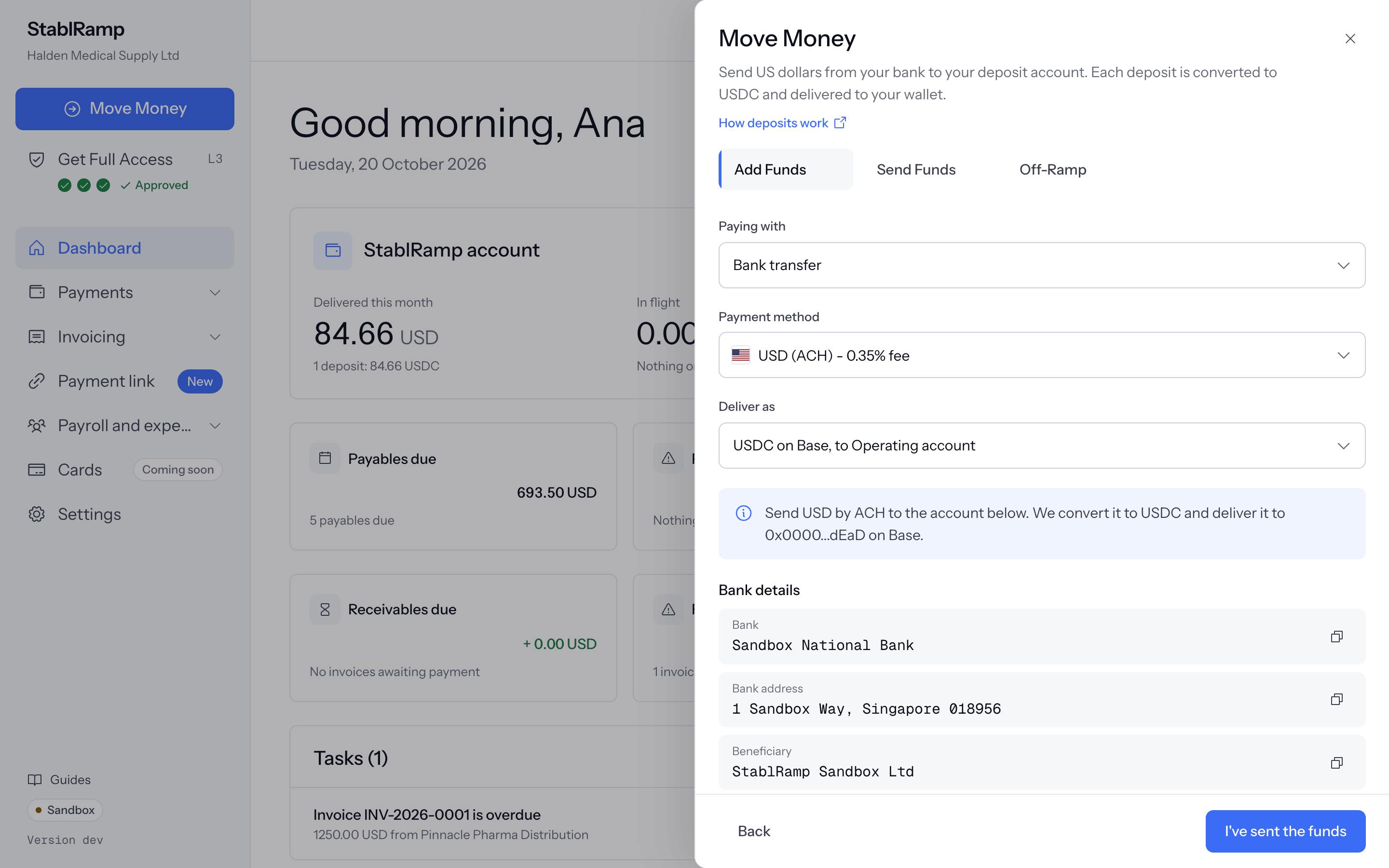
With an active USD account, Add Funds becomes a form. Paying with offers Bank transfer; Stablecoin transfer (coming soon) is listed but disabled. Payment method lists the rails the account accepts with its fee where one applies, and Deliver as lists every account you hold; change either without leaving the drawer.
An info banner restates the choice in full, and Bank details below it repeats the fields from the account's own page, covered in Receiving deposits, each with its own Copy button.
Tell us you have sent it
Enter the Amount you sent, which we use to match your transfer when it arrives, and choose I've sent the funds. The drawer answers Thanks, we have noted your transfer with a reference beginning SR-EXP-, and the note Add the reference to the payment note if your bank allows it. We match the deposit when it arrives and email you once it is delivered. Nothing about the account or its destination wallet changes: this note only tells us to expect the transfer.
A note like this stays open for up to 72 hours. A transfer arriving within about one percent of the amount given, or carrying the reference in its memo, is matched to the deposit it creates. An unmatched note expires at the deadline; the deposit still completes on its own once the money arrives.
Follow the deposit through
View deposits in the confirmation, or Done to close the drawer; either way you can check on the transfer later. The dashboard's Deposits card lists the four most recent arrivals, each with who sent it, what was delivered against what arrived, and the rail used; Show all deposits opens the full list. An organisation with none yet reads No deposits yet. Money that arrives in a deposit account shows up here., with its own Add funds button that opens this same drawer.
Switch on Deposit delivered and Expected deposit matched under Notifications to hear about each step by email rather than checking back.