Expenses
Pay back what an employee spends for the business: submitted with a receipt, approved like any other payment, then paid to their wallet.
Last updated 20 October 2026
Expenses
Expenses, under the Payroll and expenses group, lists what employees have spent and asked to be paid back for, tabbed Submitted, Approved, Paid and Rejected. It is marked New in the sidebar for its first month. An expense is a payable like a bill or a direct payment: it is approved under the same policies and paid from your own wallet the same way.
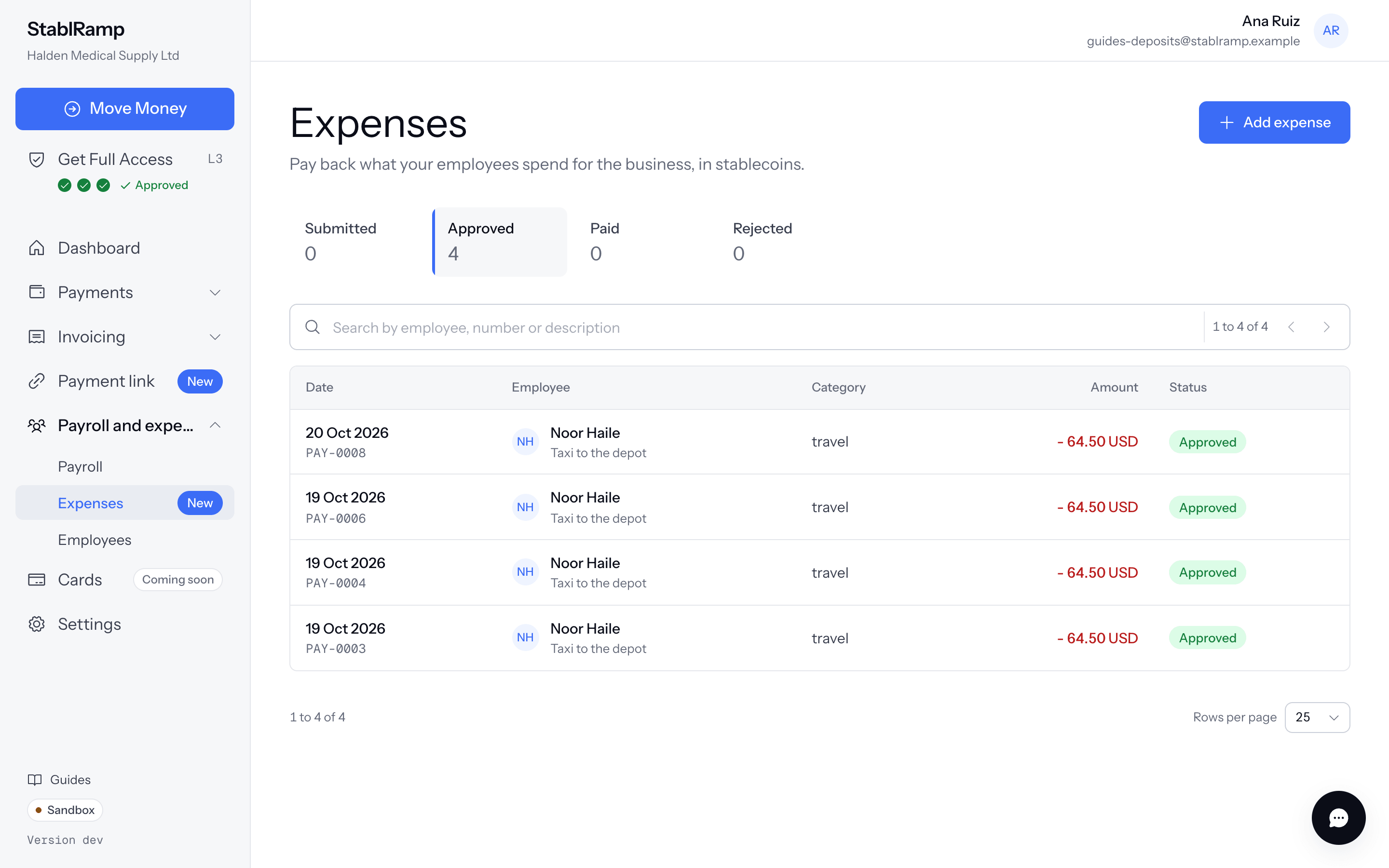
Add an expense
- Choose Add expense, then the Employee and the Amount.
- Choose a Category, for example Travel or Software, and the Date spent.
- Attach the Receipt: a PDF, JPEG or PNG, up to 10 MB, or leave it to attach from the expense afterwards.
- Add a short Description, then choose Submit expense.
An employee needs an active wallet to be paid, saved on their own page in Employees and payroll runs. Without one, the expense reads The employee has no wallet, so this expense cannot be paid from your wallet yet.
Approve, reject, pay
An expense submitted under an approval policy waits for the approvals it names; without one, it is ready to pay once submitted. Approve or Reject, with a reason, works exactly as for a bill.
Approved, Pay opens the pay-from-wallet step and pays the employee's own wallet, the same step used in Pay a vendor with Send Funds: the address, the amount, then the transaction hash StablRamp checks on chain. Pay again reopens it after a payment could not be verified.
An expense's own page shows its receipt beside its details, so an approver can check it before deciding, the same way a bill's document sits beside its fields.