Getting started
Open an account, create your organisation, and find your way around the dashboard, the sidebar and Settings. Then invite your team and protect your sign-in.
Last updated 20 October 2026
Before you begin
You need a work email and a password of at least 12 characters. Everything you do in StablRamp belongs to an organisation: deposit accounts, orders, beneficiaries and team members. You create the organisation straight after your account; the legal details, documents and people behind the business come later, during verification.
Open an account
- On the sign-in page, choose Open an account next to New here?.
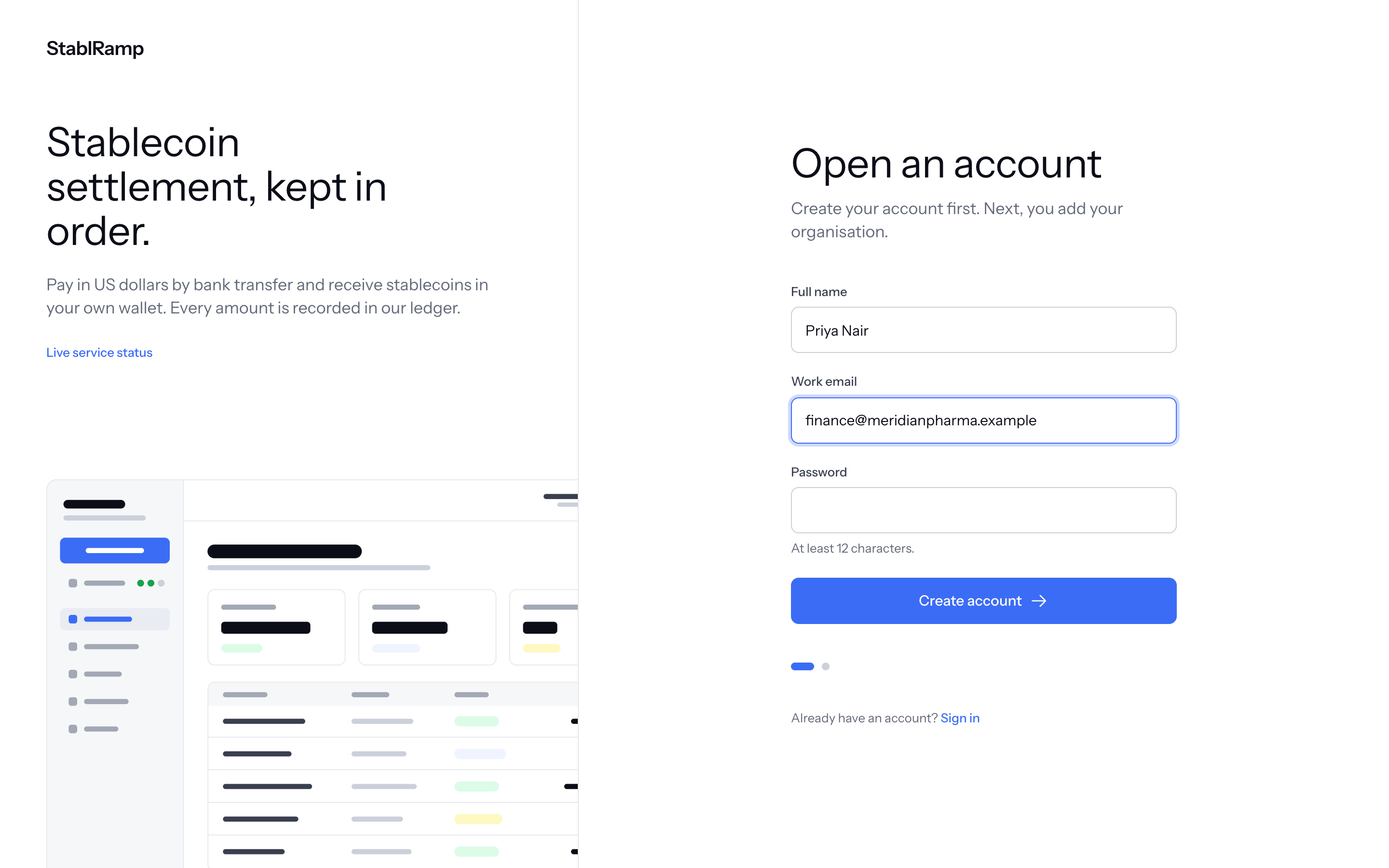
- Enter your Full name, Work email and a Password. The password needs at least 12 characters.
- Choose Create account. You are signed in straight away and taken to Create your organisation.
If an account already exists, the form says An account with this email already exists. Sign in instead, or use Forgot password?
By default, StablRamp does not ask you to confirm your email before you use the app, so Personal details shows Email verified as Not yet, with Send a verification link to confirm it. Nothing is limited by it, and the address cannot be changed from the app yet.
Create your organisation
- Enter the Organisation name the way you want it shown to your team.
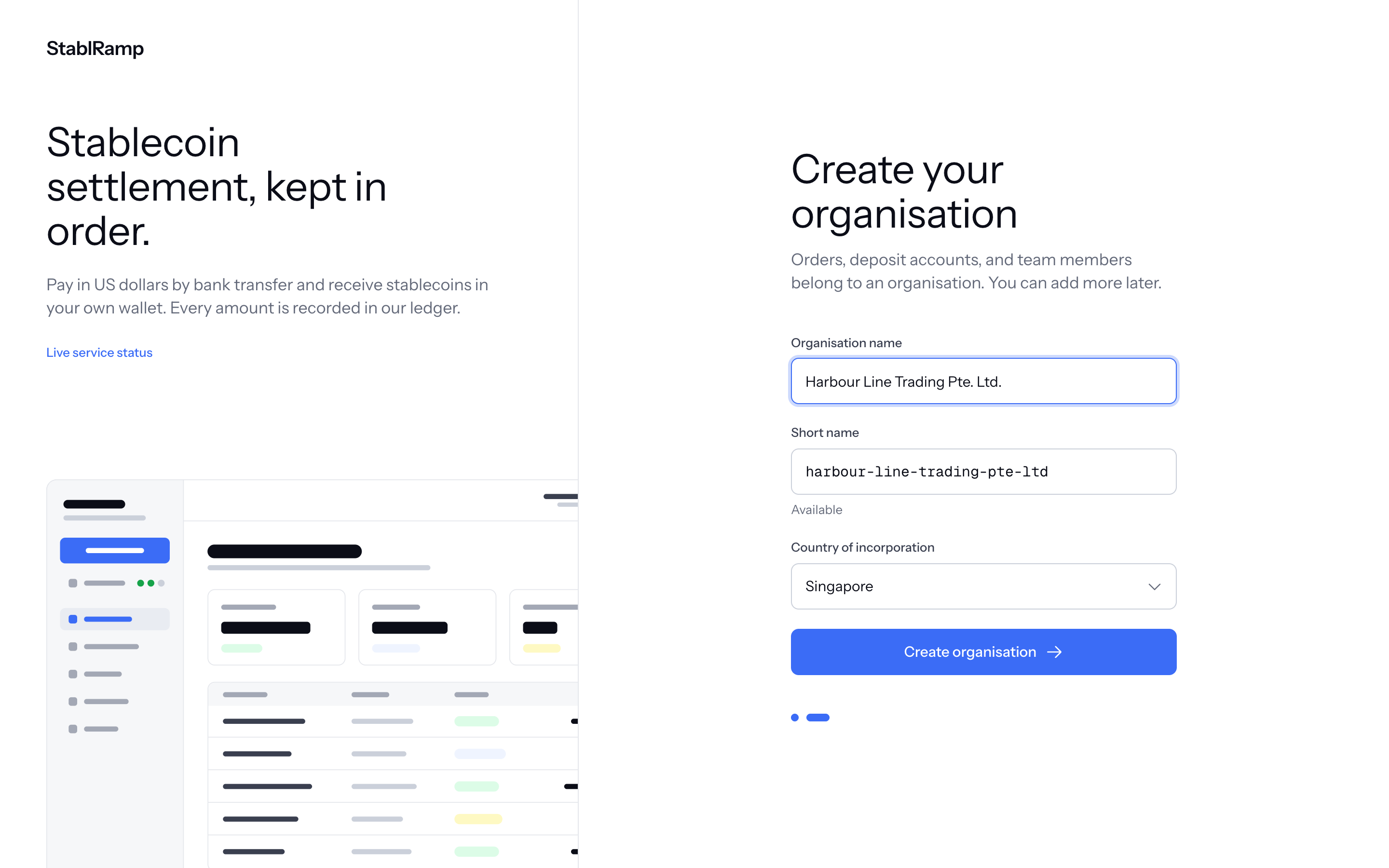
- Pick a Short name: 3 to 48 lowercase letters, numbers or dashes. It is used in links and references, and the field tells you whether it is Available or Already taken.
- Select the Country of incorporation.
- Choose Create organisation. The dashboard opens.
The dashboard
The dashboard greets you by name with today's date; no level or trust pill sits in its header. Below, the StablRamp account card gives the two totals that matter, since StablRamp never holds a balance of its own: Delivered this month and In flight, with Move Money and Export beside them. Under it, Tasks lists anything waiting on you, and Deposits lists the latest four, with Show all deposits for every one.
Beside the dashboard, a Getting Started checklist walks through eight steps: company details, identity, business verification, inviting your team, adding a wallet, a first deposit, a first payment, and a first invoice once invoicing ships. Its progress counts off as each step is done, and Hide checklist removes it once you no longer need it.
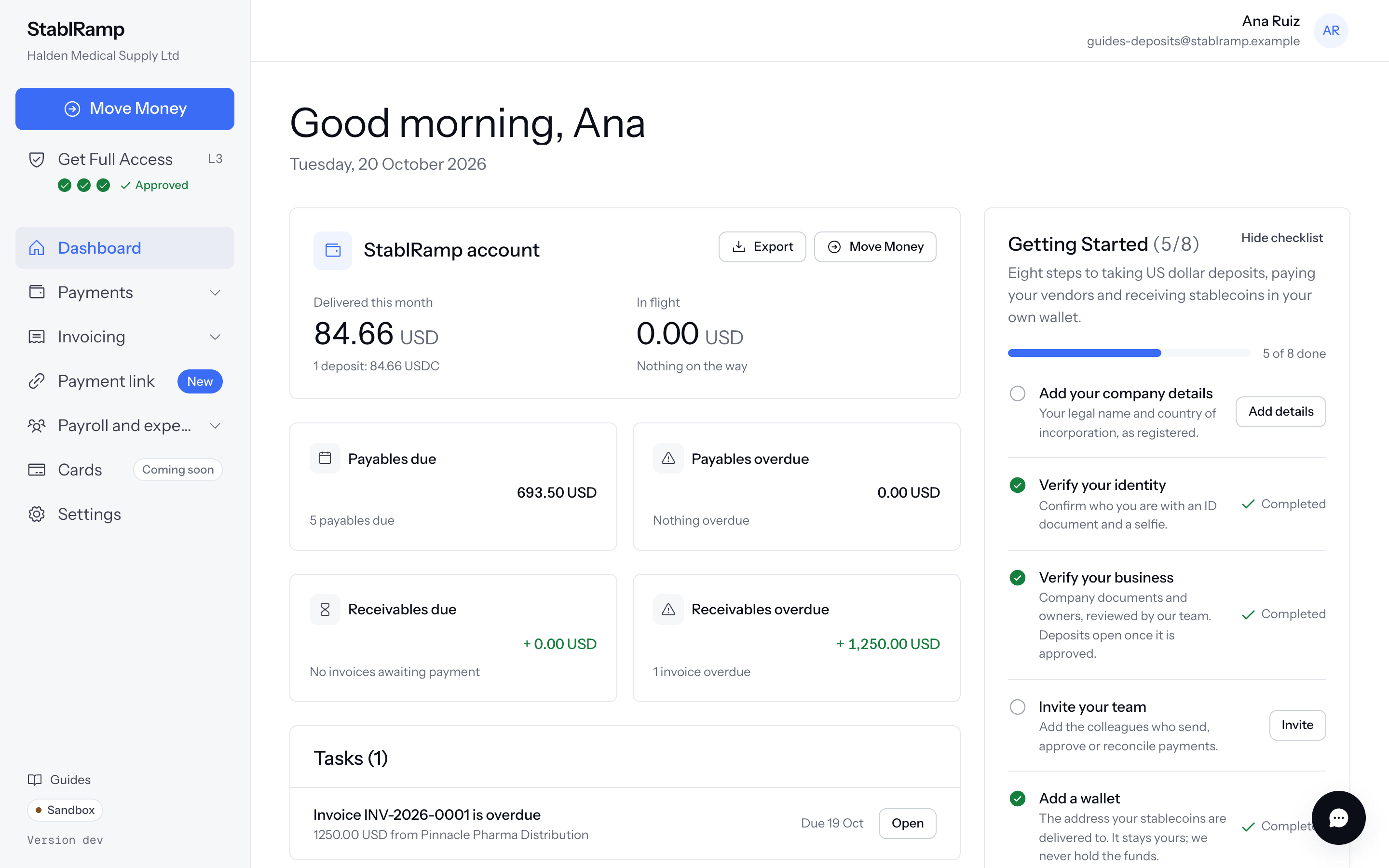
The sidebar starts with Move Money, covered in Add funds with Move Money, then Get Full Access with a dot for each step and, once done, operating approval. Below: Dashboard; Payments (Bills, Direct Payments, Vendors, Deposits, Deposit accounts, Beneficiaries); Invoicing (Sent invoices, Clients); Payment link marked New; Payroll and expenses (Payroll, Expenses marked New, Employees); Cards marked Coming soon; and Settings. The foot links to Guides and shows a Sandbox or Live chip; the support bubble sits bottom right (Getting help).
In the sandbox, deposit accounts run against a simulated partner: no real money moves, and an active account offers a form to simulate a deposit.
Settings
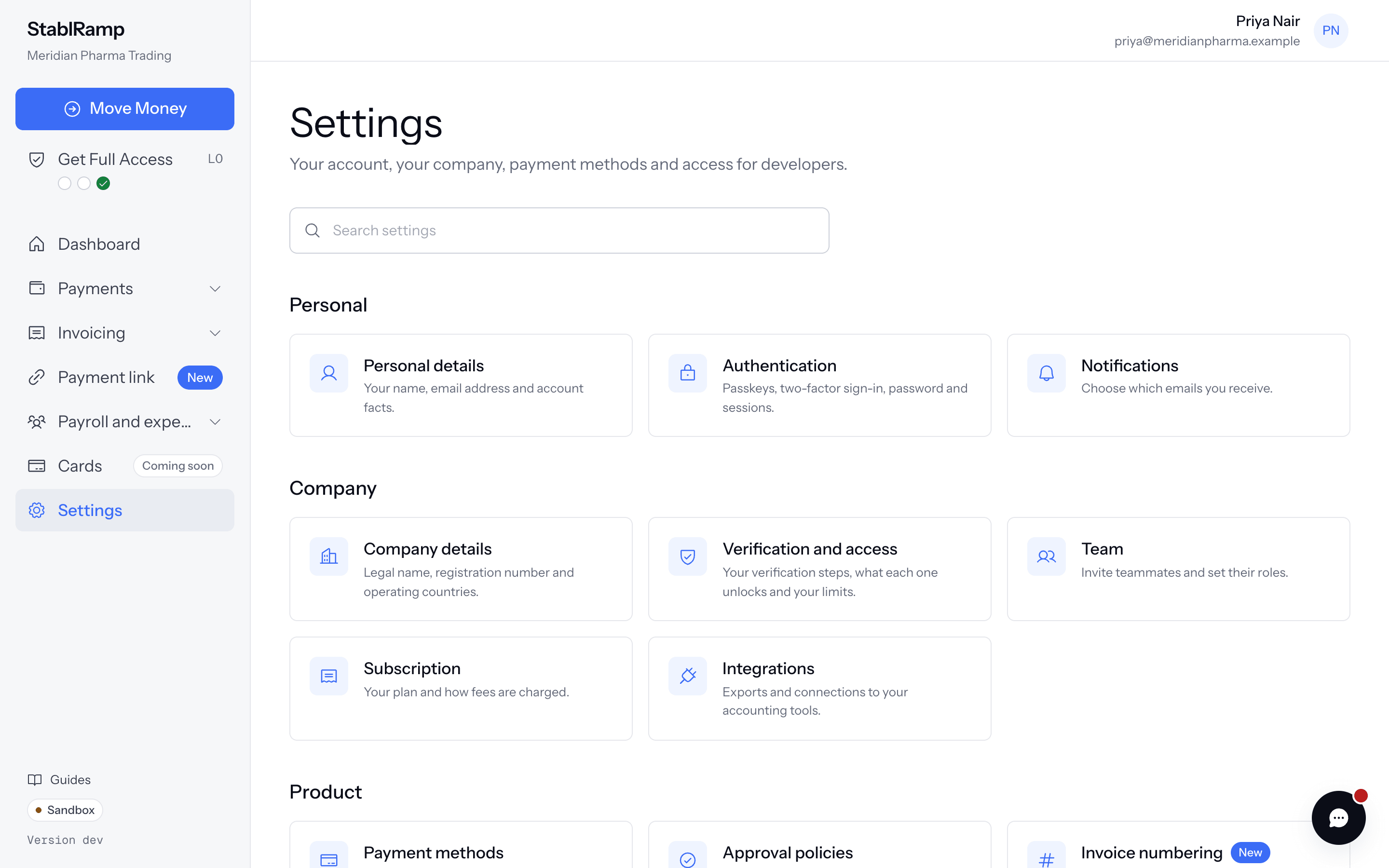
Settings opens a grid of cards, searchable with Search settings. Personal holds Personal details, Authentication and Notifications; Company holds Company details, Verification and access, Team, Subscription and Integrations. Product holds Payment methods and Approval policies; Developers holds API keys; Support links to Help.
Sign in
Enter your Work email and Password and choose Continue, or choose Use a passkey if you registered one. With two-factor sign-in on, Second factor asks for the code from your authenticator app.
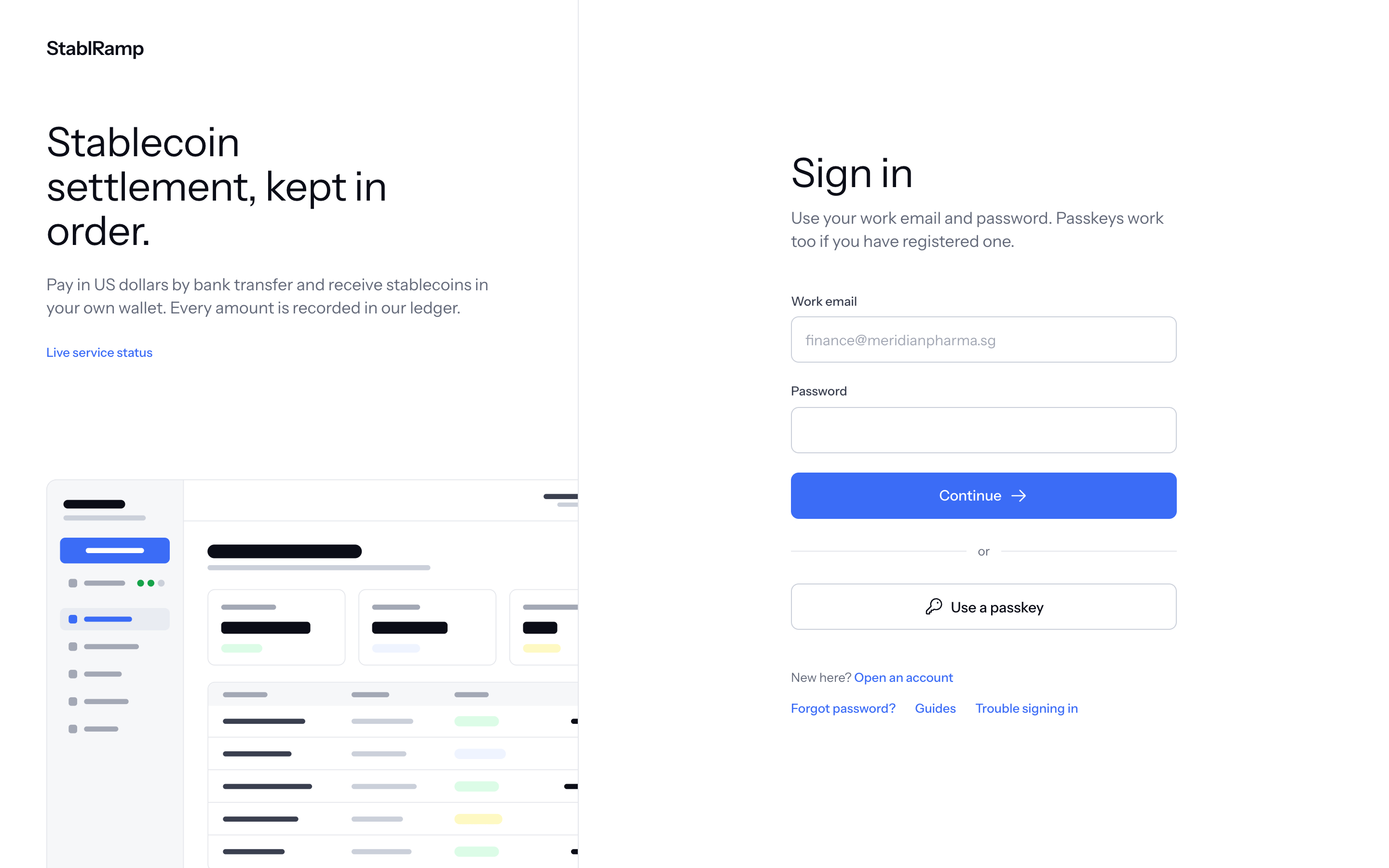
Passkeys, two-factor codes, backup codes and sessions are covered in Authentication.
What to do next
- Add a passkey or enable two-factor sign-in, meeting the L1 requirement of Get Full Access.
- Invite your teammates and give each one a role.
- Save a beneficiary, the wallet your deposits are delivered to.
- Once verified, open a deposit account and add funds.
- Choose your emails under Notifications.