Team and roles
Invite teammates, choose between Owner, Admin and Member, change roles, and remove or leave an organisation.
Last updated 19 October 2026
Roles
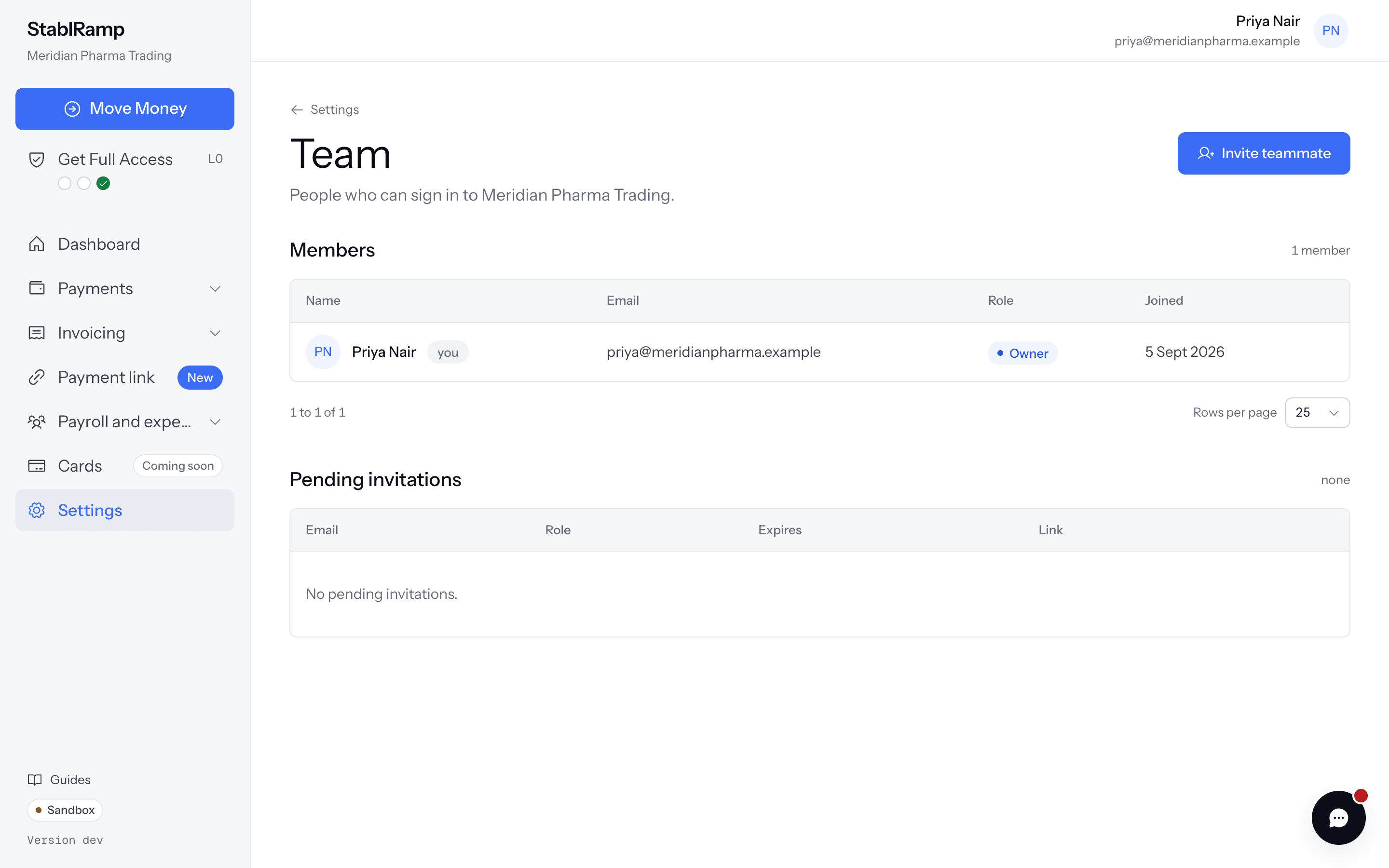
Everyone who can sign in to the organisation is listed on Team, under Settings, with one of three roles. Roles decide who manages the team, the organisation's details and the business verification. They do not limit the money pages: every role can open and close deposit accounts, read orders, add and remove beneficiaries, open and reply to support tickets, and create API keys.
| Role | What it allows |
|---|---|
| Owner | Everything an admin can do, plus renaming the organisation, making others owners, and changing or removing other owners. |
| Admin | Invite teammates as members or admins, change the roles of admins and members, remove them, edit the organisation details, save the company step of business verification, link a teammate to a person record, submit the verification, and revoke any API key of the organisation. |
| Member | Everything on the money pages, the people and documents steps of business verification, and API keys, where a member revokes only their own keys. Organisation details, the company step and the submission are read only: Only owners and admins can change these details. You can read them. |
Invite a teammate
- Open Settings, then Team, and choose Invite teammate.
- Enter their Work email and choose a Role: Member or Admin.
- Choose Send invitation. The page confirms that the invitation is ready, and an email with the link goes to them when mail delivery is configured.
- Use Copy invitation link to send the link yourself if the email does not arrive.
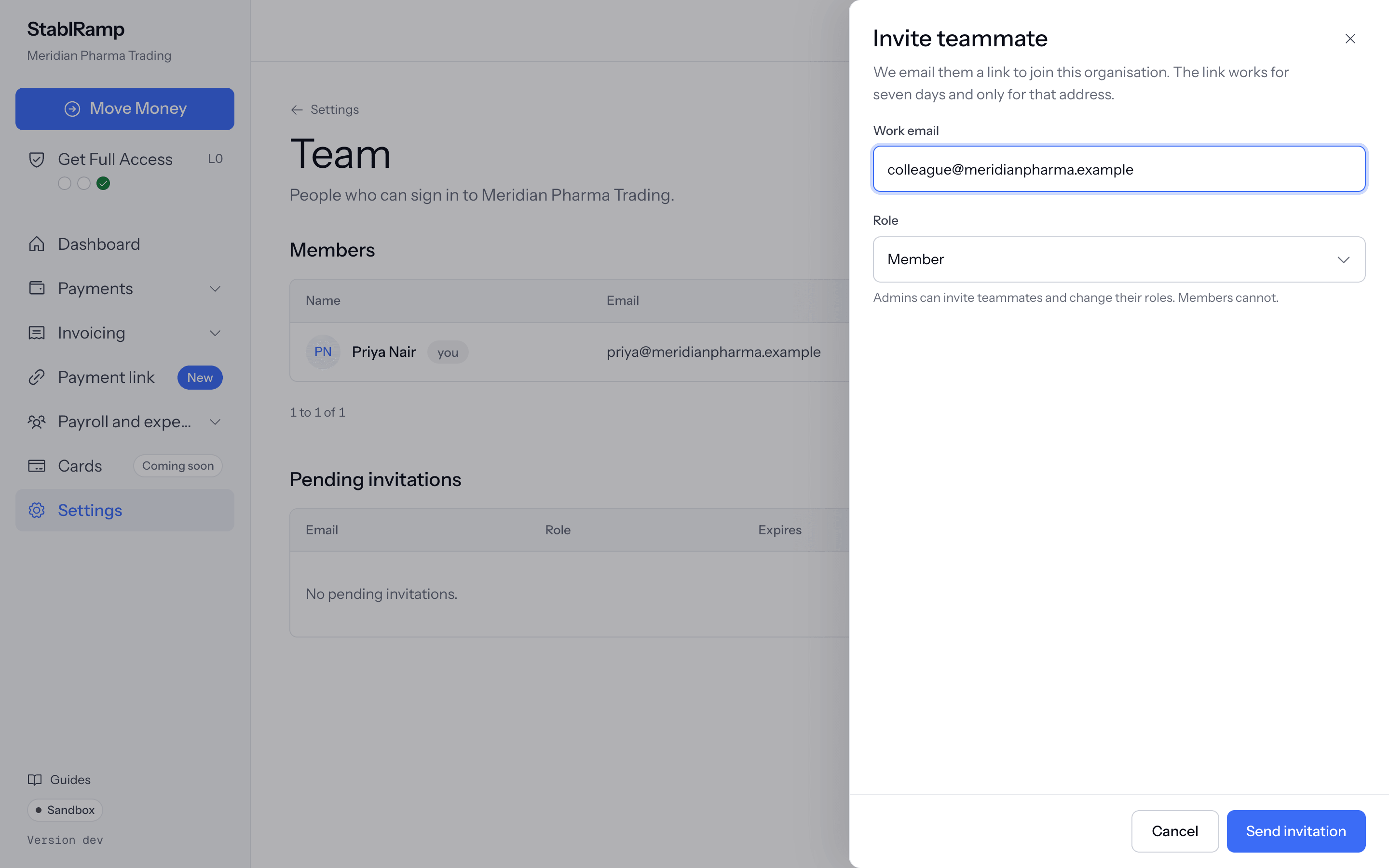
The link works for seven days and only for the invited address. Owners and admins see open invitations under Pending invitations, where Copy link gives the link again and Cancel withdraws it. Inviting an address that already has a pending invitation replaces it: the earlier link stops working, and the page says so.
Accept an invitation
The invited person opens the link. Signed out, they see Join an organisation with Create account and Sign in; they use the invited address and come back to the same page. Signed in, they see the organisation, the role and who invited them, and choose Accept invitation.
Signed in with another address, the page says This invitation was sent to a different email address. and offers Use a different account. A link that can no longer be used says why: This invitation has expired. Ask the person who invited you for a new one., This invitation was cancelled. Ask the person who invited you for a new one., or This invitation was already accepted. Sign in to use the organisation.
Change a role or remove someone
Owners and admins change a role from the select in the Members table. Only an owner can give the Owner role or change an existing owner. Remove asks you to Confirm removal.
An organisation always keeps at least one owner. To step down as the last owner, make someone else an owner first.
Leave an organisation
Admins and members see Leave this organisation at the foot of Team. Choose Leave organisation, then Confirm and leave. You lose access to its orders, deposit accounts and beneficiaries; an owner can invite you again. An owner does not see this option: make someone else an owner, then ask them to change your role.