Security: passkeys, two-factor and sessions
Add a passkey, enable two-factor sign-in with backup codes, change or reset your password, and sign out browsers you do not recognise.
Last updated 19 October 2026
Where the settings are
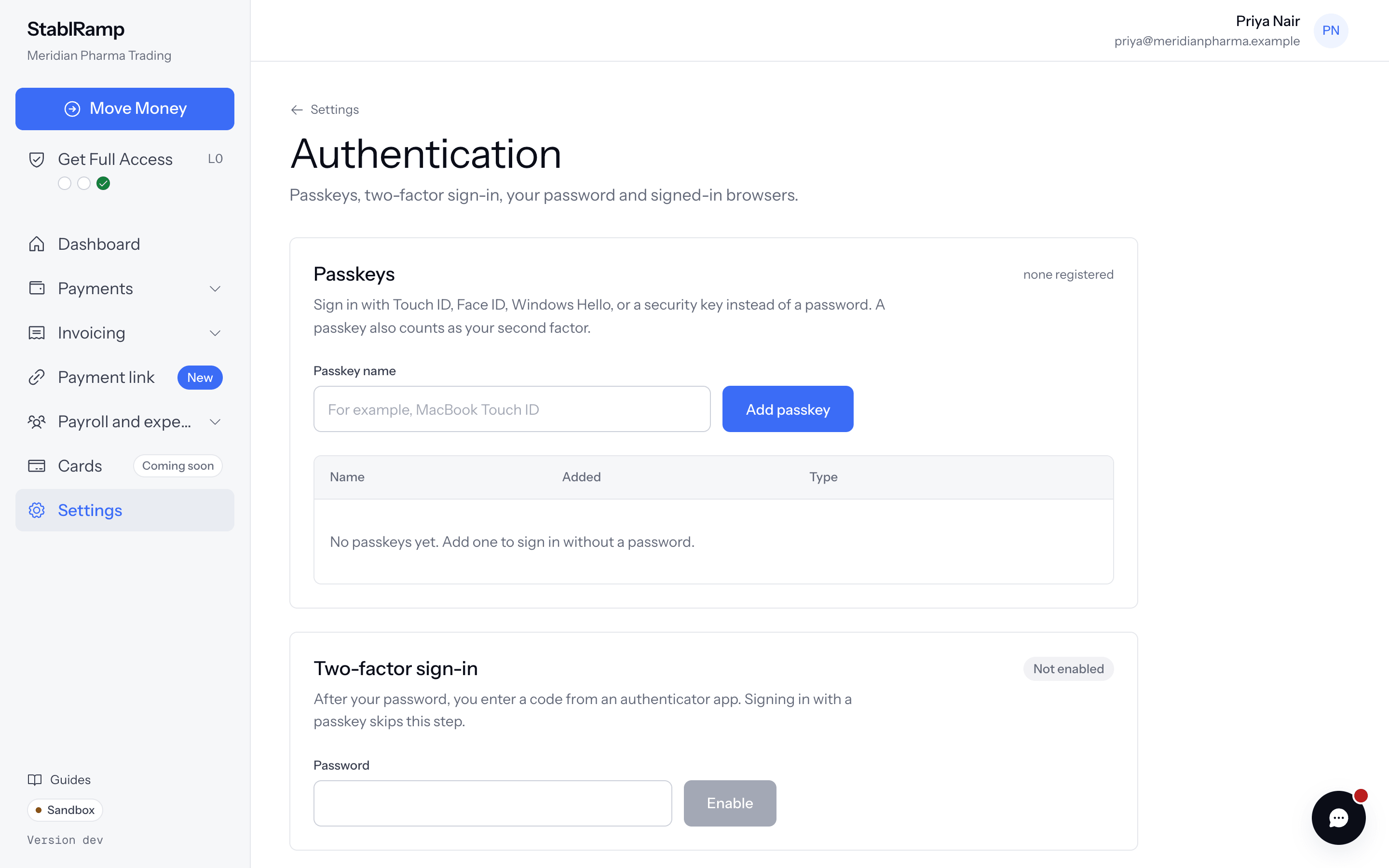
Open Settings and choose Authentication, in the Personal section of the grid. The page has four parts: Passkeys, Two-factor sign-in, Password and Sessions. A passkey or two-factor sign-in on your account is also the requirement for verification level L1.
Add a passkey
A passkey signs you in with Touch ID, Face ID, Windows Hello or a security key instead of a password, and counts as your second factor.
- Under Passkeys, enter a Passkey name you will recognise, for example MacBook Touch ID.
- Choose Add passkey and confirm on your device.
- On the sign-in page, choose Use a passkey from then on.
Each passkey shows when it was added and whether it is synced across devices or bound to one. Rename and Remove are next to it.
Enable two-factor sign-in
- Under Two-factor sign-in, enter your Password and choose Enable.
- Scan the QR code with your authenticator app, or enter the Setup key by hand.
- Save the backup codes somewhere safe. Each one signs you in once if the app is unavailable.
- Enter the Code from the app and choose Confirm and enable.
From the next password sign-in, the Second factor screen asks for the Authenticator code. Tick Trust this browser for 30 days to skip it on that browser, or choose Use a backup code instead. Passkey sign-ins skip the code because the device already proved possession.
New backup codes replaces the previous set: the old codes stop working. New backup codes and Disable both need your password.
Change or reset your password
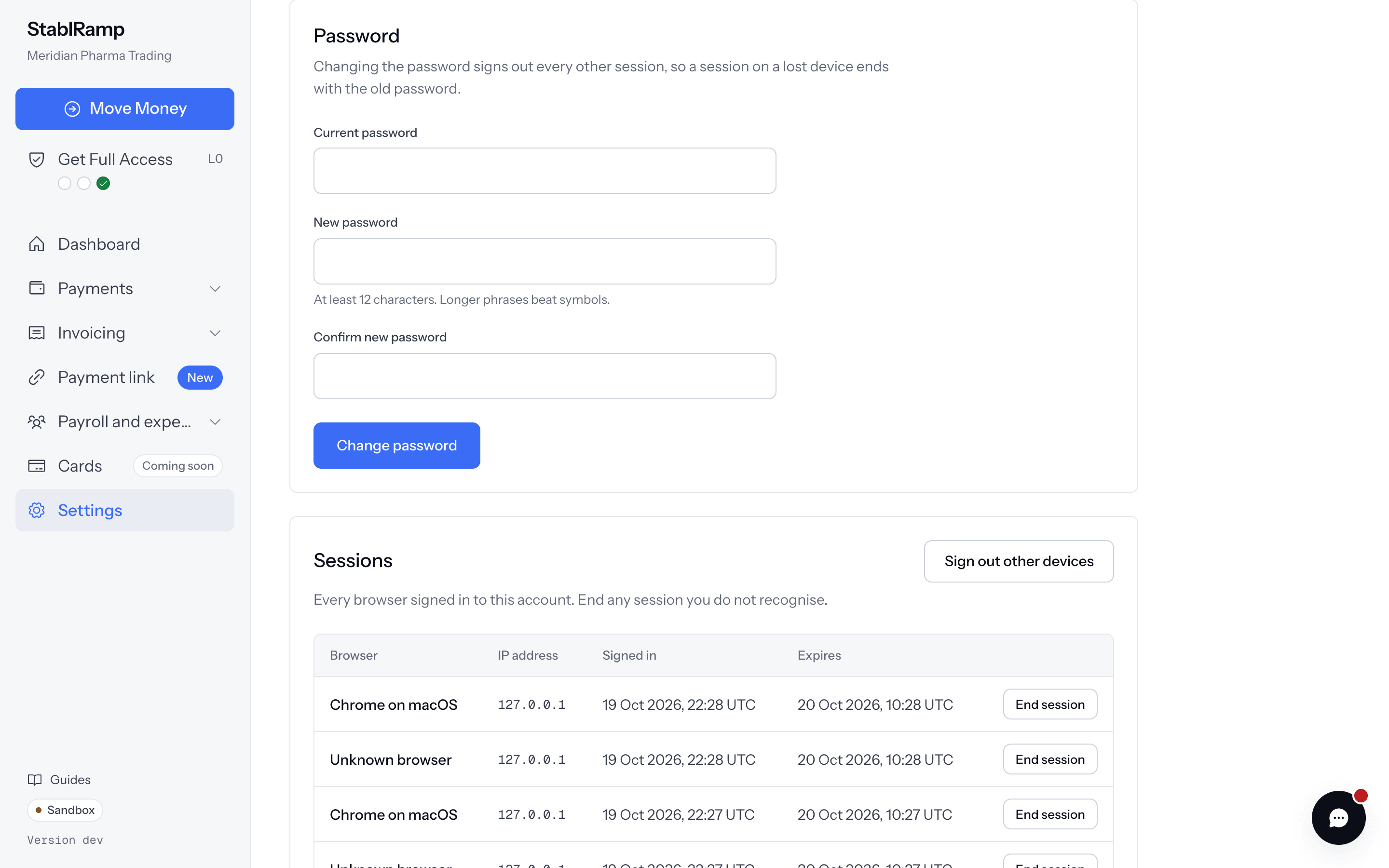
Under Password, enter the Current password, the New password and Confirm new password, then choose Change password. Passwords need at least 12 characters. Changing it signs out every other session, so a session on a lost device ends with the old password.
- If you have forgotten it, choose Forgot password? on the sign-in page.
- Enter your Work email and choose Send the link. If the address has an account, a reset link is on its way. It works once, for one hour.
- Open the link, enter the new password twice and choose Save the new password.
A reset through the emailed link signs out every session of the account, on every browser, as a password change does. Sign in again with the new password.
Review your sessions
Sessions lists every browser signed in to your account, with its network address, when it signed in and when it expires. The one you are using is marked This browser. End session signs out one session; Sign out other devices signs out all except this one.