Clients and sent invoices
Save the companies and people you invoice, bill them with a payment link, and see an invoice move from sent to viewed to paid as they deal with it.
Last updated 20 October 2026
Clients
Clients, under the Invoicing group, holds the companies and people you invoice. Add a client asks for a Company or client name, a Contact first name and Contact last name if you have them, an Email address (invoices are sent there), a Tax number and a Billing address. Search clients finds one by name, email address or contact.
Archive asks you to confirm: the client leaves the client list and the invoice editor, while invoices already sent to it stay as they are. A client's own page repeats its details and lists Invoices to this client, with Create invoice to bill it again.
Create and send an invoice
- Choose Create invoice, then Bill to: an existing client, or Add a new client without leaving the editor.
- Set Issued on and Due on, and Pay by: Stablecoin to your wallet or USD bank transfer, then the wallet or deposit account it pays into.
- Add a line for each item: Description, Quantity, Unit price and, if it applies, Tax. The total updates as you go.
- Choose Save draft to come back later, or Send.
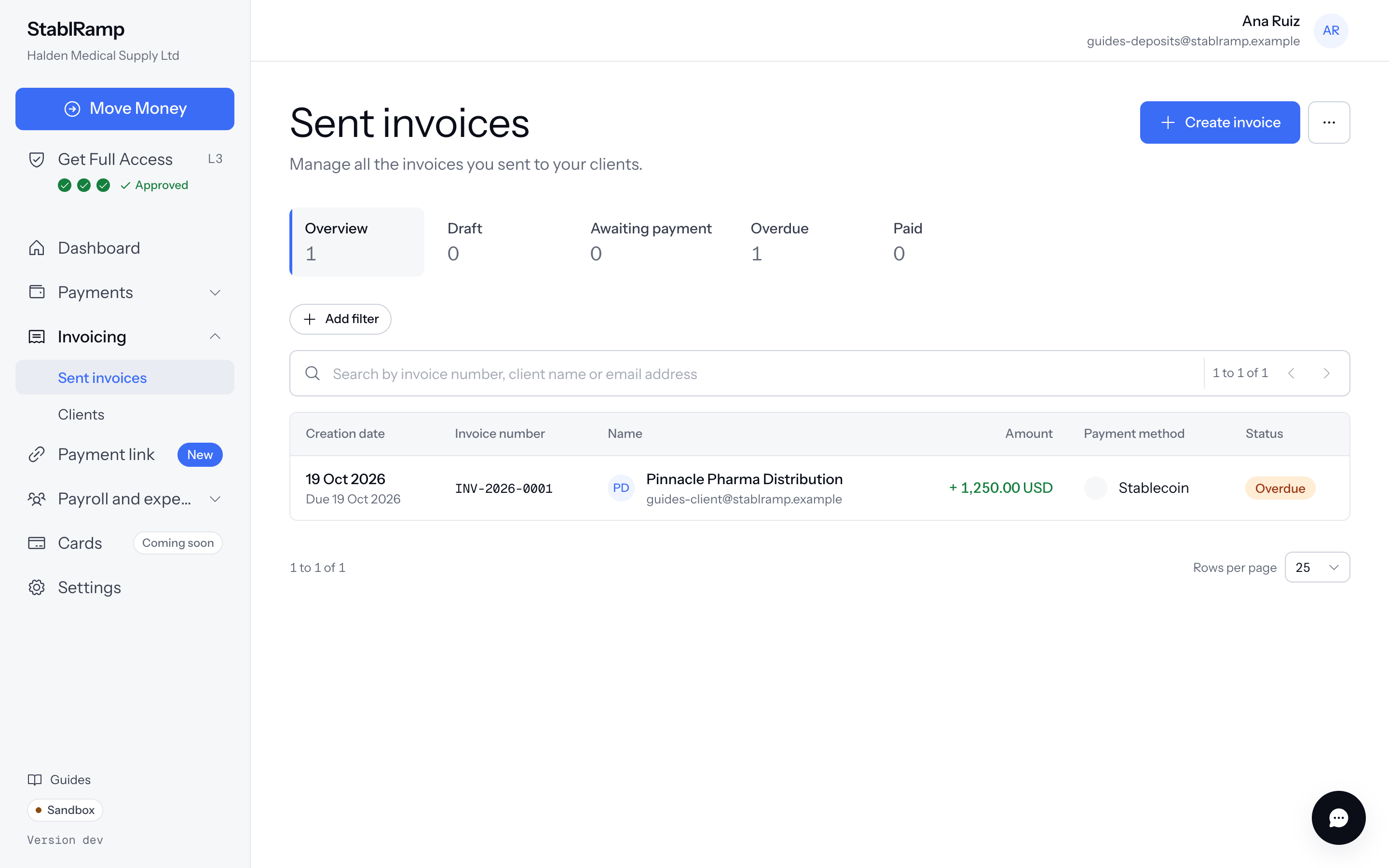
Save draft works at any verification level, so the invoice is ready and waiting before verification finishes. Send needs our team's operating approval; pressing it while a step is still missing lists exactly which ones, each a link to the page that finishes it, rather than doing nothing. Once every step is done, the dialog restates who it goes to and the total due; Send invoice numbers it, for example INV-2026-0001, renders it as a PDF, and emails the client the PDF with a link to pay it. A client with no email address gets no email; share the link yourself instead.
What the client sees on the pay page
The link opens a public page with no sign-in needed: Amount due, the due date, and How would you like to pay? with Pay by USD bank transfer or Pay in stablecoin, whichever the invoice accepts. Opening it for the first time moves the invoice from Sent to Viewed.
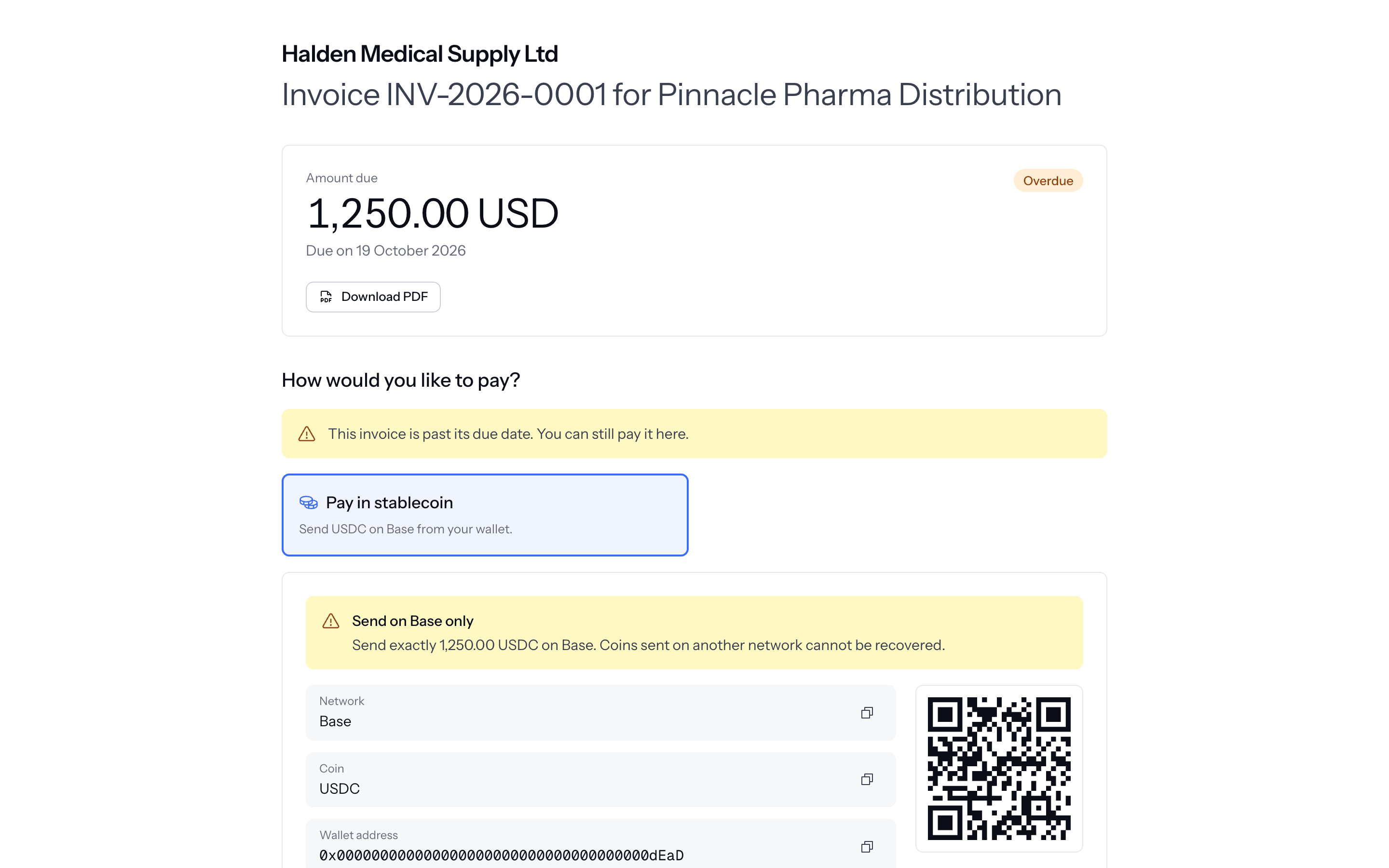
Choosing a method moves the invoice to Awaiting payment and shows what it takes: a wallet address, network and amount for stablecoin, with its own QR code, or the deposit account's bank details and a reference to quote for a bank transfer. I've sent the payment lets the client add their name and, if they have it, the transaction hash, which is noted on the invoice's timeline as Client says they paid.
Paid, matched, or marked paid
A bank transfer or a stablecoin transfer that arrives and matches the invoice is marked Paid on its own, the way an expected deposit is matched to a deposit in Add funds with Move Money. From the invoice's More actions menu, Mark as paid records a payment that was not matched for you, with a note on how it arrived. Either way the client is emailed that payment was received.
An invoice still unpaid past its due date moves on its own to Overdue; the client can still pay it from the same link. Duplicate starts a new draft with the same lines, for billing the client again, and Cancel invoice stops its pay link taking payments.