Bills: import and pay
Upload the invoice a vendor sent you, confirm the vendor, the amount and the dates against it, then submit the bill for approval and pay it from your own wallet.
Last updated 20 October 2026
Bills
Bills, under the Payments group, manages every invoice you received from a vendor. Its tabs split them by status: Overview, Imports for drafts not yet submitted, Approved, Awaiting payment and Paid. Search bills finds one by bill number or vendor.
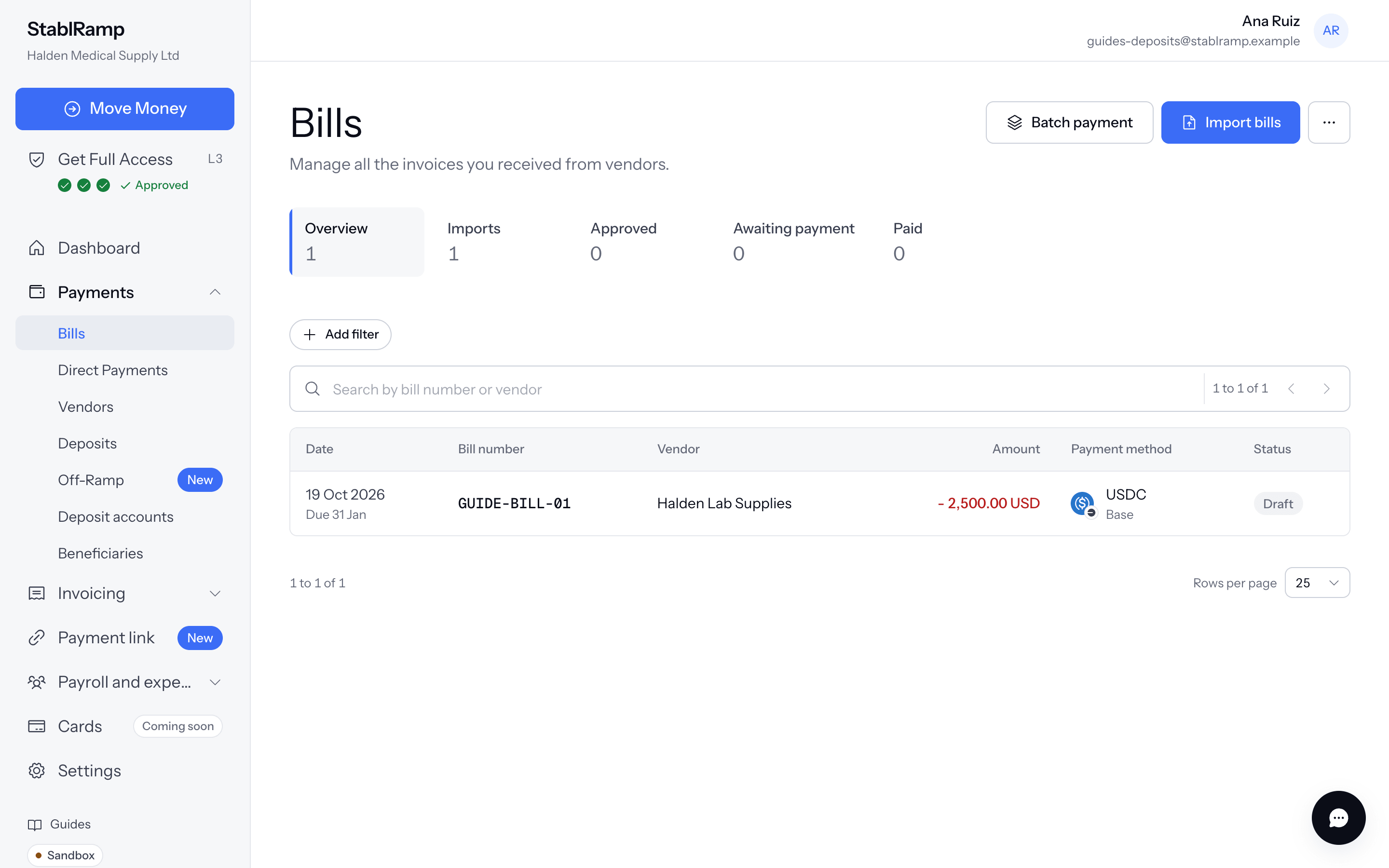
With nothing imported yet, the list reads No bills yet. Import a vendor's invoice to pay it from your wallet. A bill with no due date set shows nothing in that column; one overdue is marked Overdue beside its due date.
Import a bill
- Choose Import bills.
- Drop the vendor's invoice or choose a file: PDF, JPEG or PNG, up to 10 MB.
- Choose the Vendor it came from, or Add a new vendor without leaving the drawer.
- Enter the Bill number from the vendor's own invoice, the Amount, and, if you know them, Issued on and Due on.
- Payment method offers the methods saved on that vendor; choose one, or leave it for later if the vendor has none yet.
- Choose Save bill.
The bill is saved as a draft under Imports, open it to check the details and submit it for payment. If the document does not finish uploading, Retry the upload; the bill itself is not created twice.
Check it against the document
A bill's own page shows its Document beside its fields, so you check the amount, the dates and the vendor against the file you uploaded rather than against memory. A draft reads This bill is a draft. Check the details against the document, then submit it. Your approval policy applies on submit.
Edit reopens the amount, dates, payment method and the note while the bill is still a draft; once it is submitted, only Cancel remains available alongside paying it. Previous bill and Next bill step through the list without going back to it.
Submit, approve, pay
- Choose Submit for payment. Without a matching approval policy, the bill is ready to pay at once; with one, it waits for the approvals the policy asks for.
- An owner or admin the policy names chooses Approve or Reject, with a reason if rejecting. A rejected bill returns to draft so whoever submitted it can correct it.
- Once approved, choose Pay now. Paying from your own wallet, the transaction hash and what StablRamp checks on chain all work exactly as in Pay a vendor with Send Funds; Pay again reopens the same step after a payment could not be verified.
- A bill paid by bank transfer is paid outside StablRamp: choose Mark as paid outside and say how it was paid.
A bill's Timeline records every step: created, submitted for approval, approved, the transaction submitted for checking, paid, or returned to draft with the reason. Cancel bill is final and available any time before it is paid.
Approval policies, operating approval and how a payment is verified on chain are shared by every kind of payable: bills, direct payments, payroll and expenses all work the same way once submitted.